How to Organize and Name Your Documents Like a Pro
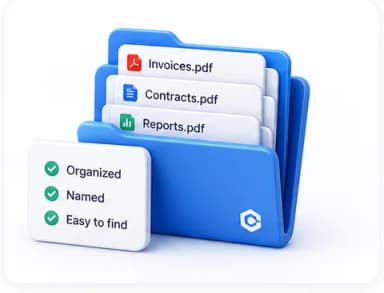
Everyone has opened a downloads folder and found "Invoice.pdf," "Invoice (1).pdf," "Invoice final.pdf," and "Invoice final FINAL.pdf" sitting side by side with no way to tell which one actually matters. This isn't a storage problem — it's a naming and structure problem, and it has a genuinely simple fix.
Why generic file names cause chaos as your document count grows
A file named "Invoice.pdf" is only unambiguous while it's the only invoice you have. The moment you have a second one, the name has already failed at its one job — telling you what's inside without opening it. The fix isn't complicated: every file name should uniquely and immediately identify what it is, without needing to open it to find out.
A simple, consistent naming convention that scales
A reliable pattern that works for almost any document type: Date_Category_Description. For example: 2026-07-21_Invoice_AcmeCorp or 2026-07-21_Contract_OfficeLease. This single convention front-loads the two pieces of information you most often search by — when it was created and what category it belongs to — and keeps files in chronological order automatically when sorted alphabetically, since a YYYY-MM-DD date format sorts correctly as text.
- Always use YYYY-MM-DD date format specifically — it sorts correctly alongside other files without any manual reordering, unlike MM-DD-YYYY or DD-MM-YYYY, which don't sort chronologically as plain text.
- Avoid vague words like "final," "updated," or "new" in a file name — they become meaningless and misleading the moment a newer version exists.
- Avoid spaces and special characters where possible (use underscores or hyphens instead) — some systems and older software handle spaces and symbols in file names inconsistently.
- Keep names reasonably short but genuinely descriptive — long enough to be unambiguous, short enough to still be readable at a glance in a file list.
Folder structure that actually helps instead of just adding depth
A folder structure with too many nested levels can be just as unhelpful as no structure at all, since finding anything requires remembering (or clicking through) an increasingly deep path. A flatter structure organized by a small number of clear top-level categories — Clients, Invoices, Contracts, Internal — combined with genuinely descriptive file names inside each, is usually easier to navigate than a deeply nested tree trying to encode every possible attribute in the folder path itself.
Handling document versions without losing track
- Decide upfront whether you need to keep every historical version or just the current one — not every document needs a full version history kept indefinitely.
- If tracking versions matters, use an explicit version number in the file name (v1, v2) rather than vague terms — this makes the sequence unambiguous at a glance.
- Once a document is finalized (a signed contract, a submitted report), consider marking it clearly as final and moving draft versions to a separate archive folder rather than leaving them mixed in with active files.
- For anything genuinely important, keep at least one backup copy outside your primary working location — a cloud backup, a separate drive — so a single point of failure can't cost you the only copy.
When it's genuinely time to reduce file count, not just organize better
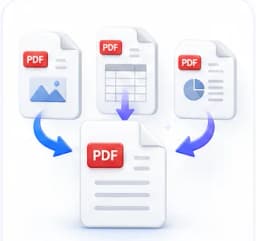
Good naming and folder structure solve findability, but if you're also accumulating genuinely redundant files — the same document merged into different combinations, or dozens of near-duplicate scans — periodically consolidating related documents into single, well-organized files (merging related PDFs into one, removing truly obsolete drafts) reduces both clutter and the chance of accidentally working from an outdated copy.
Common Mistakes
Using vague terms like "final" or "updated" in file names
These become meaningless and actively misleading once multiple versions exist with similar names. An explicit date or version number is unambiguous in a way these words never are.
Using a date format that doesn't sort correctly as text
MM-DD-YYYY or DD-MM-YYYY don't sort into chronological order when a file list is sorted alphabetically. YYYY-MM-DD does, automatically, with no extra effort.
Building an overly deep folder structure
Too many nested levels can make finding a file slower than a flatter structure with genuinely descriptive file names, since it requires remembering or navigating a longer path each time.
Combine Related Documents
Combine multiple PDFs into a single file, in the order you choose.
Frequently Asked Questions
Related Articles
PDF Guides
How to Merge PDF Files Without Losing Quality
Why merging PDFs sometimes makes them blurry or huge, and how to combine files while keeping every page exactly as sharp as the original.
Productivity Guides
How to Build a Strong Password You'll Actually Remember
Complexity rules like one-capital-one-number-one-symbol are outdated advice. Here is what actually makes a password hard to crack, and how to make it memorable too.

Workflow Guides
How to Batch-Sign Multiple Documents Efficiently
Signing 12 contracts one at a time, re-uploading your signature every single time, is real, avoidable friction. Here is how a proper batch-signing session works.