How to Batch-Sign Multiple Documents Efficiently
If you've ever needed to sign a genuine stack of documents — a batch of employment contracts, a folder of invoices, a set of NDAs before a big meeting — you've probably felt the specific friction of a signing tool that treats every document as a completely fresh session: upload your signature again, place it again, download, repeat. Multiply that by a dozen documents and the actual signing takes less time than the repetitive setup around it.
The batch-signing workflow
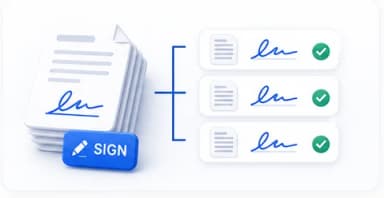
The signature is set up once and stays active for the entire session — only the document changes as you move through the stack.
Why a persistent signature session actually matters
The core idea is simple but genuinely changes the experience: your signature should behave like a pen you're holding, not a file you have to re-attach for every single page. Once it's set up, it should stay ready — the same signature, in the same style, at the same size — as you move from one document to the next, with the tool only asking you to place it in the right spot on each new page.
Staying oriented across a genuinely large batch
Once you're working through more than a handful of documents, simply remembering which ones are already done becomes its own small challenge. A proper batch-signing session should show you a clear document list with signed/pending status at a glance, let you jump between documents freely rather than forcing a strict linear order, and show your overall progress (how many done, how many remain) so you always know exactly where you are in the stack without having to mentally track it yourself.
When it's worth using a proper batch workflow vs. just signing one at a time
- Two or three unrelated documents on different days — a standard one-at-a-time signing flow is perfectly fine, since there's no real repetitive setup to save.
- A genuine batch — multiple contracts, a stack of invoices, several forms — arriving together and needing signing in one sitting is exactly where a persistent-signature batch session pays off.
- Mixed file formats in the same batch (some PDFs, some Word documents, a scanned image) work best with a tool that handles format conversion automatically, so you're not manually converting files before you can even start signing.
Finishing a batch cleanly
Once every document in the batch is signed, you generally want one of two things: a single document you need right now (download it individually), or the whole completed batch to file away or send somewhere (download everything as one ZIP). A good batch-signing session offers both without forcing you to pick one approach for the whole session upfront — you can grab an individual file the moment it's done and still get the full ZIP once everything is complete.
Common Mistakes
Re-uploading your signature photo for every document in a batch
A proper batch-signing session keeps your signature active for the whole sitting — this repetitive step is exactly the friction a real batch workflow is designed to remove.
Losing track of which documents in a large batch are already signed
Without a clear signed/pending status list and progress indicator, it's easy to accidentally skip a document or sign one twice in a genuinely large batch.
Manually converting Word documents to PDF before starting a signing batch
A modern signing tool handles format conversion automatically as part of the upload — manually converting first is an unnecessary extra step that a good workflow removes entirely.
Start Batch-Signing Now
Sign PDF, Word documents, and photos of printed pages securely online — upload or draw your signature, place it anywhere, and download. Free, no login required.
Frequently Asked Questions
Related Articles
Business Documents
Are Digital Signatures Legally Binding? A Practical Guide
In most parts of the world, yes — with real conditions attached. Here is what actually makes a digital signature enforceable, and where paper still wins.

Workflow Guides
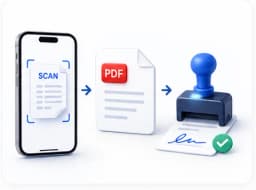
From Scan to Signed PDF: A Complete Document Workflow
A photo of a printed page, cleaned up, made searchable, and signed — without ever leaving your phone or touching a scanner. Here is the full chain, tool by tool.
Workflow Guides
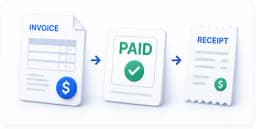
Building a Repeatable Invoice-to-Payment Workflow
From creating the invoice to getting paid, most of the friction in this process is self-inflicted. Here is a repeatable chain that removes it.