How to Merge PDF Files Without Losing Quality
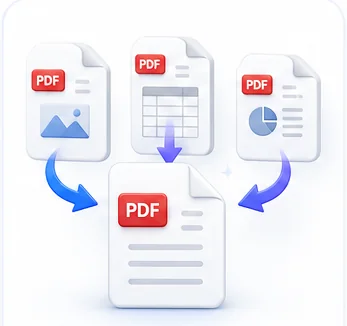
Combining a few PDFs into one file sounds like it should be simple — and technically, it is. But if you've ever merged a scanned contract with a typed cover letter and ended up with a file that's either blurry, gigantic, or missing pages, you've run into the two things that actually go wrong during a merge: quality loss and bloated file size. Neither has to happen.
Why merging can degrade quality
A PDF isn't one file format — it's a container that can hold vector text, embedded fonts, raster images, and scanned pages, all at once. When you merge PDFs, the tool doing the work has two fundamentally different jobs depending on what's inside each file.
- Text-based PDFs (exported from Word, Google Docs, or a design tool) store their content as actual text and vector shapes. Merging these is lossless — the text stays crisp at any zoom level because it was never a picture to begin with.
- Scanned or image-based PDFs (a photographed contract, a printed form you scanned) are just images wrapped in a PDF shell. If a merge tool re-compresses or downsamples those images to save space, that's where visible quality loss creeps in.
The safest merge tools don't touch the underlying page content at all — they simply stitch the existing pages together, byte for byte, into a new document structure. That's the difference between a tool that merges and a tool that silently re-encodes everything it touches.
The real cause of huge merged files
If your merged PDF is much larger than the sum of its parts, quality isn't usually the problem — duplicated resources are. Every PDF can embed its own copy of a font, a logo, or a background image. When five PDFs each embed the same company letterhead font, a naive merge can end up storing that font five separate times instead of once.
How to merge PDFs without losing anything
- Check what you're combining first. If every file is text-based (not scanned), you're already in the safest scenario — quality loss basically isn't possible with a proper merge tool.
- Upload your files and set the order. Most merge tools let you drag files into the sequence you want before combining — do this rather than merging twice to fix the order, since every extra pass is one more chance for a lossy tool to re-process pages.
- Merge once, in one pass. Repeatedly merging output back into itself (merge A+B, then merge that with C) is more likely to trigger unnecessary re-processing than merging all files in a single operation.
- Check the result at 100% zoom, not just the thumbnail. Scanned pages in particular can look fine shrunk down but reveal compression artifacts once you view them at actual size.
When file size still matters more than perfect quality
Sometimes you genuinely do need a smaller file — email attachment limits are the most common reason. In that case, treat merging and compressing as two separate, deliberate steps rather than hoping a merge tool quietly compresses for you. Merge first at full quality, then compress the single combined file afterward, so you control exactly how much quality you're trading for size, once, instead of it happening invisibly during the merge.
This two-step approach also means if the compressed version looks worse than you'd like, you still have the full-quality merged file to fall back on and compress again at a lighter setting — you're not stuck re-doing the whole merge.
Common Mistakes
Merging low-resolution scans expecting them to look better afterward
Merging can't add detail that isn't there. If a scanned page was blurry going in, it will be blurry in the merged file too — the fix is re-scanning at a higher resolution, not a different merge tool.
Re-merging the same file multiple times to fix a page order mistake
Each additional merge pass is an unnecessary re-processing step. Reorder pages before merging, or use a tool that lets you reorder pages within the combined file afterward instead of merging again from scratch.
Assuming a smaller merged file always means lower quality
A smaller result is often just better resource de-duplication (shared fonts and images stored once instead of per-file), not compression. Always check the actual page content before assuming quality was sacrificed.
Merge Your PDFs Now
Combine multiple PDFs into a single file, in the order you choose.
Frequently Asked Questions
Related Articles
PDF Guides
How to Compress a PDF Without Losing Quality
What actually makes a PDF large, why compression looks worse on some files than others, and how to shrink a PDF while keeping text sharp and images usable.
Productivity Guides
How to Organize and Name Your Documents Like a Pro
Most document chaos comes from inconsistent naming and folder structure, not too many files. A few simple conventions fix almost all of it.

Workflow Guides
Building a Repeatable Invoice-to-Payment Workflow
From creating the invoice to getting paid, most of the friction in this process is self-inflicted. Here is a repeatable chain that removes it.