How to Compress a PDF Without Losing Quality
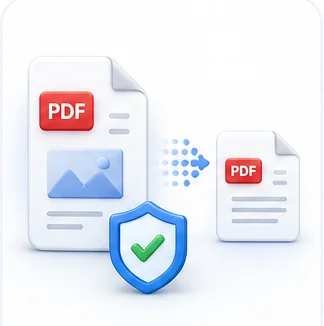
PDF compression has a bad reputation, mostly because people have seen what happens when it's done badly: text that turns fuzzy, photos that break into blocky squares, or a file that barely shrinks at all. None of that is inherent to compression — it's what happens when a tool applies one aggressive setting to every file regardless of what's actually inside it.
What actually takes up space in a PDF
Before compressing anything, it helps to know what's making your file large in the first place, because the fix is different depending on the cause.
- Embedded images — by far the most common cause. A single high-resolution scanned page can be several megabytes on its own; a 20-page scanned document can easily reach 50–100MB.
- Embedded fonts — a document using several custom fonts stores the actual font files inside the PDF so it displays correctly on any device, which adds real weight, especially with non-Latin scripts.
- Vector graphics and layers — complex illustrations, CAD-style diagrams, or PDFs exported with hidden layers/annotations left in.
- Redundant data from repeated edits — a PDF that has been edited and re-saved many times in some editors can accumulate old, orphaned data that never gets cleaned up.
How compression actually works
Good PDF compression is selective, not a blanket blur filter over the whole page. It typically: re-encodes embedded images at a lower (but still readable) resolution and a more efficient compression algorithm, subsets embedded fonts so only the characters actually used are kept instead of the entire font file, and strips genuinely unnecessary data like leftover metadata or unused object references — while leaving actual text as text, so it stays perfectly sharp and stays selectable/searchable.
This is why a scanned PDF and a typed PDF respond so differently to compression: the scanned one is almost entirely image data, so there's real room to shrink it; the typed one was already small, so compression has very little left to work with.
Choosing the right compression level for the job
- For sending by email or a form with a size limit, moderate compression is almost always enough — most PDFs drop 40-70% in size before any visible quality difference shows up.
- For archiving something you need to stay pristine (a signed contract, a certificate), keep the original alongside any compressed copy rather than overwriting it — compression is one-directional, you cannot get lost detail back afterward.
- For a document you'll only ever view on screen (not print), you can push compression further than you would for something headed to a printer, since screen resolution needs are lower than print resolution needs.
- For text-heavy reports with only a few images, expect a modest size reduction — that's correct behavior, not a broken tool, since there simply isn't much image data to compress.
Checking the result before you rely on it
Always open the compressed file and check it at real size before deleting or overwriting the original — zoom into any photo or scanned page specifically, since that's where compression artifacts show first, well before body text becomes noticeably softer. If a specific page (like a photo-heavy cover page) looks worse than the rest, that's a sign the whole document was compressed too aggressively for that particular content, and a lighter compression pass might be worth trying instead.
Common Mistakes
Compressing a PDF that is already small
Text-only PDFs have very little image data to compress, so running them through compression again and again yields almost no size reduction while adding risk of quality loss for no real benefit.
Overwriting the only copy of an important original
Compression is lossy and one-directional — once detail is removed from an image, it can't be recovered. Always keep an uncompressed original of anything you might need at full quality later, like a signed legal document.
Judging quality from a shrunk-down thumbnail
Compression artifacts are often invisible at thumbnail size and only become obvious when you zoom to 100% or print the page — always check at real size before trusting the result.
Compress Your PDF Now
Shrink a PDF's file size for easier sharing.
Frequently Asked Questions
Related Articles
PDF Guides
How to Merge PDF Files Without Losing Quality
Why merging PDFs sometimes makes them blurry or huge, and how to combine files while keeping every page exactly as sharp as the original.
Image Guides
How to Compress Images Without Losing Visible Quality
Every photo has compression headroom the eye never notices, and a point past which quality clearly drops. Here is how to find the sweet spot for any image.
PDF Guides
How to Convert PDF to Word Without Breaking the Formatting
Why PDF-to-Word conversion sometimes scrambles columns and tables, what actually happens under the hood, and how to get an editable document that still looks right.