How to Convert PDF to Word Without Breaking the Formatting
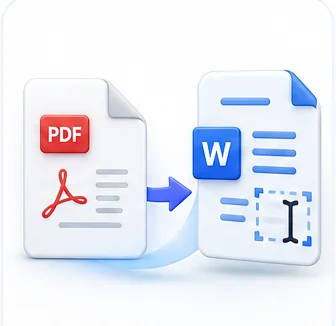
PDF was designed to look identical everywhere — that's the entire point of the format. Word documents were designed to be edited and reflowed. Converting from one to the other means translating between two fundamentally different ideas of what a document "is," and that translation is where formatting problems come from.
Why a PDF doesn't actually know what a paragraph is
A Word document stores structure explicitly: this is a heading, this is a bulleted list, this is a table with four columns. A PDF, by contrast, mostly just stores positioned text — instructions like "put the letter H at this exact x/y coordinate." It doesn't inherently know that a string of characters is a heading versus a caption versus a footnote; it just knows where every character sits on the page.
Good PDF-to-Word conversion has to reconstruct that missing structure by inference — grouping nearby text into paragraphs, detecting column boundaries from whitespace patterns, and recognizing grid-aligned text as a table. That reconstruction is genuinely difficult, and it's why conversion quality varies so much depending on how the original PDF was built.
What converts cleanly, and what doesn't
- Simple, single-column text documents (letters, reports, most contracts) convert very reliably — paragraph structure is usually unambiguous.
- Multi-column layouts (newsletters, some academic papers, brochures) are the highest-risk case — the converter has to correctly guess where one column ends and the next begins, and dense layouts with narrow gutters are genuinely ambiguous even to a human glancing quickly.
- Tables with clear grid lines convert well; tables defined only by whitespace alignment (no visible borders) are harder and more error-prone, since there's less visual evidence to detect the table structure from.
- Scanned PDFs (photographed or scanned pages with no underlying text layer) can't be converted directly at all — there's no text to extract, only pixels. These need OCR first to create a text layer before any format conversion is possible.
How to get the cleanest possible conversion
- Start from the best-quality PDF you have access to. A PDF exported directly from Word or Google Docs converts far better than one created by scanning a printed copy of the same document.
- If the source is scanned, run OCR first so there's an actual text layer to work with, rather than expecting a direct PDF-to-Word conversion to somehow read the image.
- Expect to do light manual cleanup on complex layouts. Even excellent conversion can't perfectly guess every intent — budget a few minutes to fix stray line breaks or a misplaced table cell rather than expecting zero cleanup for a genuinely complex document.
- Check tables specifically. They're the most common place small errors hide, since a single misaligned cell can shift an entire row without being immediately obvious.
When you don't actually need to convert at all
If your real goal is just to extract some text or fill in a few form fields rather than fully re-editing the document's layout, a full PDF-to-Word conversion might be more work than you need. Copying the specific text you need, or using a fill-PDF-forms tool for form fields specifically, often gets the job done with far less formatting risk than converting the entire document.
Common Mistakes
Converting a scanned PDF directly without running OCR first
A scanned PDF has no text to extract — only a picture of text. Direct conversion either fails outright or produces an empty/garbled document. OCR has to create the text layer first.
Expecting a pixel-perfect visual match after conversion
Word documents reflow; PDFs don't. Even a great conversion optimizes for correct, editable structure, not an exact visual replica — some manual adjustment for a genuinely complex layout is normal, not a sign of a bad conversion.
Not checking multi-column or table sections specifically
These are the highest-risk parts of any conversion. A document can look perfect at a glance while a table has one row shifted — always scroll through tables and columns specifically before trusting the result.
Convert PDF to Word Now
Turn a PDF into an editable Word document (.docx), formatting included.
Frequently Asked Questions
Related Articles
AI Guides
What Is OCR and When Do You Actually Need It
OCR turns a picture of text into real, searchable, copyable text. Here is what it actually does, how accurate modern AI-powered OCR really is, and the situations where you genuinely need it.
PDF Guides
How to Compress a PDF Without Losing Quality
What actually makes a PDF large, why compression looks worse on some files than others, and how to shrink a PDF while keeping text sharp and images usable.
AI Guides
How AI Document Translation Works (and Where It Still Struggles)
AI translation has gotten remarkably good at meaning, tone and even preserving layout — but it still has real limits. Here is how it actually works and where to double-check its output.