What Is OCR and When Do You Actually Need It
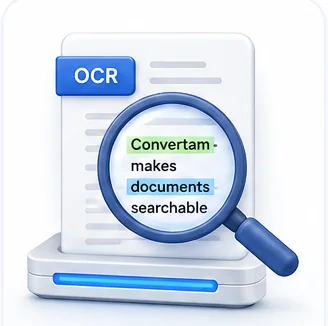
OCR stands for Optical Character Recognition, and despite the technical name, the idea is simple: it looks at a picture of text — a scanned page, a photo of a document, a screenshot — and figures out what the actual letters and words are, turning a flat image into real, selectable, searchable text.
The difference between a scan and real text
This distinction trips people up constantly, so it's worth being precise about. A scanned document — even one that looks perfectly clear on screen — is just a photograph. To your computer, it's no different from a photo of a mountain: a grid of colored pixels with no concept of "this is the word Invoice." You can't search it, you can't copy a sentence out of it, and screen readers can't read it aloud to someone with visual impairment.
OCR bridges that gap. It analyzes the shapes in the image, recognizes them as letters and words, and produces an invisible layer of real, selectable text positioned exactly over the original image — so the document still looks the same, but now behaves like a normal digital document underneath.
How AI-powered OCR is different from older OCR
Older OCR engines worked by matching individual letter shapes against a fixed template library — which worked reasonably well on clean, typed text in a standard font, but fell apart on anything unusual: handwriting, low-contrast scans, unusual fonts, or a document photographed at a slight angle under bad lighting.
Modern AI-based OCR works more like how a person actually reads — using context to make sense of ambiguous or messy input, not just matching isolated letter shapes. It can often correctly infer a smudged word from the surrounding sentence, handle a wider range of handwriting styles, and cope much better with imperfect real-world photos instead of only pristine flatbed scans.
When you actually need OCR
- You have a scanned or photographed document and need to search it, copy text out of it, or edit it — this is the single most common reason people need OCR.
- You need to convert a scanned document into an editable Word or Excel file — conversion tools need real text to work with, and OCR is the step that creates it.
- You're archiving paper documents and want them to be findable later by searching for keywords instead of manually opening every file.
- You need a document to be accessible — screen readers used by visually impaired users can only read real text, not an image of text.
- You're extracting specific data (a total, a date, a name) from a photographed receipt or form instead of typing it in by hand.
When you don't need OCR
If your PDF already came from a Word document, a website export, or any other digital-native source, it almost certainly already has real, selectable text — try highlighting a sentence with your cursor to check. Running that file through OCR anyway does nothing useful and, in rare cases, can slightly degrade quality if the process re-renders the page as an image before re-recognizing it.
Getting the most accurate OCR results
- Use the highest-quality scan or photo you can — more resolution genuinely helps the AI distinguish similar-looking characters correctly.
- Make sure the text is reasonably well-lit and in focus; heavy shadows or blur are the most common causes of OCR mistakes.
- Straighten crooked photos before running OCR if your tool doesn't do this automatically — text at an angle is measurably harder to recognize accurately than text that's level.
- Always proofread OCR output for anything important (contracts, financial figures, names) — even excellent OCR occasionally misreads a character, and the resulting text will look completely plausible even when wrong.
Common Mistakes
Running OCR on a document that already has real text
If a PDF was exported digitally (not scanned), it already has a text layer. Running OCR on it is unnecessary and adds no value — check by trying to select text first.
Trusting OCR output on financial figures without double-checking
OCR can occasionally misread similar-looking characters — a 5 as an 8, or a comma as a period in a number. For anything with real consequences (invoice totals, dates, ID numbers), always verify against the original image.
Photographing a document at a steep angle or in poor light
OCR accuracy drops noticeably on skewed, blurry, or poorly lit photos. A few extra seconds getting a straight, well-lit shot pays off in significantly cleaner results.
Run OCR on Your Document
Extract text from scanned PDFs and images using AI. Works on handwriting too.
Frequently Asked Questions
Related Articles
Image Guides
How to Scan a Document With Your Phone Like a Pro
You do not need a scanner. You need good light, a straight angle, and the right cleanup afterward — here is exactly how to get a properly scanned-looking result from just a phone camera.
Workflow Guides
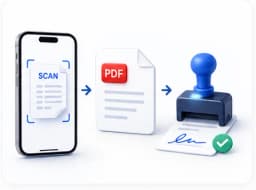
From Scan to Signed PDF: A Complete Document Workflow
A photo of a printed page, cleaned up, made searchable, and signed — without ever leaving your phone or touching a scanner. Here is the full chain, tool by tool.
PDF Guides
How to Convert PDF to Word Without Breaking the Formatting
Why PDF-to-Word conversion sometimes scrambles columns and tables, what actually happens under the hood, and how to get an editable document that still looks right.