How to Scan a Document With Your Phone Like a Pro
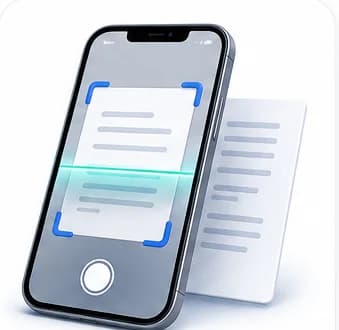
A dedicated flatbed scanner produces good results because it controls three things perfectly: even lighting, a perfectly flat and parallel document, and a fixed, known distance. A phone camera can match all three with a bit of technique — the gap between a mediocre phone "scan" and a genuinely clean one is almost entirely about how the photo is taken, not the phone's camera quality.
Lighting: the single biggest factor in scan quality
Uneven lighting is the most common reason phone scans look unprofessional — a dark shadow across one corner, a bright hotspot from an overhead bulb reflecting directly off the page. Diffuse, even light beats bright light every time: an overcast day near a window, or a well-lit room with light coming from multiple directions rather than one harsh point source, both work far better than a single bright lamp or direct sunlight.
- Avoid direct flash — it almost always creates a bright hotspot and uneven exposure across the page.
- Position yourself so your own body or the phone doesn't cast a shadow across the document as you photograph it.
- If using a lamp, angle it so light hits the page evenly rather than from one steep angle, which exaggerates shadows and any texture in the paper.
Getting the angle and framing right
Shoot from directly above the document, camera parallel to the page — not at a tilt. Even a slight angle introduces perspective distortion (the far edge of the page appearing smaller than the near edge), which makes text harder to read cleanly and can throw off automatic edge-detection in scanning apps. Fill the frame with the document but leave a small margin around all four edges so the full page — including corners — is clearly visible for any automatic cropping.
Cleaning up the photo afterward
Even a well-taken photo benefits from cleanup before it functions like a proper "scan": straightening any residual tilt, cropping tightly to the page edges, and correcting for any remaining uneven lighting or shadow gradient across the page. This last step — flattening uneven background lighting so the paper reads as a uniform white rather than darker in one corner — is what separates a "photo of a document" from something that actually looks scanned.
- Straighten the image so the page edges are level, not skewed.
- Crop tightly to just the document, removing the surrounding table or background.
- Correct uneven lighting or shadow across the page so the background reads as consistent white rather than gradient-shaded.
- If the document will be read by OCR afterward, avoid over-sharpening or heavy contrast adjustments that can distort character shapes — moderate cleanup that improves clarity without introducing artifacts works best.
When a cleaned-up scan still isn't good enough
If a document is genuinely essential — a contract you'll need to reference or share formally — and your best phone photo still isn't clean enough, it's worth re-shooting rather than pushing forward with a marginal result and heavy digital correction. Digital cleanup can meaningfully improve a decent photo, but it can't fully rescue one taken in genuinely bad conditions (severe shadow, extreme blur, strong glare) — a 20-second re-shoot under better light is almost always faster than trying to salvage a bad one after the fact.
Common Mistakes
Using the camera flash directly on the document
Flash almost always creates an uneven bright spot and washes out part of the page. Diffuse ambient light produces a far more even, professional-looking result.
Photographing at an angle instead of straight-on
Even a slight tilt introduces perspective distortion that makes automatic edge detection and later cropping less accurate, and can make text harder to read cleanly near the edges.
Over-correcting contrast or sharpness before running OCR
Aggressive digital enhancement can distort character shapes in ways that actually hurt OCR accuracy rather than helping it. Moderate cleanup that improves clarity without introducing artifacts is more reliable.
Clean Up Your Scan Now
Clean up a photo of a document — crop, straighten, remove shadows, and sharpen for a proper scan look.
Frequently Asked Questions
Related Articles
AI Guides
What Is OCR and When Do You Actually Need It
OCR turns a picture of text into real, searchable, copyable text. Here is what it actually does, how accurate modern AI-powered OCR really is, and the situations where you genuinely need it.
Workflow Guides
From Scan to Signed PDF: A Complete Document Workflow
A photo of a printed page, cleaned up, made searchable, and signed — without ever leaving your phone or touching a scanner. Here is the full chain, tool by tool.
Image Guides
JPG vs PNG: Which Should You Actually Use
They look interchangeable but compress completely differently. Here is the real technical difference and a simple rule for picking the right one every time.