JPG vs PNG: Which Should You Actually Use
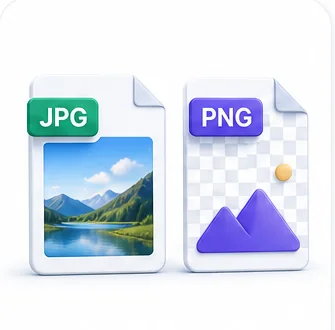
JPG and PNG are the two formats you'll run into constantly, and picking the wrong one has real, visible consequences — a JPG logo with a blurry, artifact-ridden edge around text, or a PNG photo that's needlessly five times larger than it needs to be. The good news is the decision is genuinely simple once you understand what each format is actually optimized for.
The core technical difference
JPG uses lossy compression built specifically around how photographs look — smooth gradients, lots of subtle color variation, no hard edges. It throws away image detail the human eye is statistically less likely to notice, which works extremely well on photos but produces visible artifacts (blockiness, blurring) around sharp edges, like text or a hard logo outline.
PNG uses lossless compression — nothing is thrown away, ever. Every pixel comes back exactly as it went in, no matter how many times you save the file. This makes PNG the right choice for anything with sharp edges, flat colors, or text — screenshots, logos, diagrams — but it comes at a real cost: PNG files for photographic images are typically much larger than an equivalent JPG, often by 5-10x, for very little visible quality benefit on that kind of content.
Why a JPG logo or screenshot looks noticeably worse
JPG's compression algorithm works in small blocks and is tuned for photographic content specifically. Sharp, high-contrast edges — exactly what text and clean logo shapes are made of — are the worst-case scenario for that algorithm, producing visible "ringing" artifacts and blurred edges around every letter and line. This is why a JPG screenshot of text often looks slightly fuzzy around each character even at a fairly high quality setting, while the same screenshot saved as PNG looks perfectly crisp.
Why a PNG photo is often wastefully large
A real photograph has continuous, gradual color variation across almost every pixel — exactly the opposite of PNG's strength (flat regions of identical or near-identical color). Because PNG can't throw anything away, it ends up storing an enormous amount of genuinely unnecessary precision for a photo, where the human eye wouldn't notice a small amount of controlled loss. The result is a much bigger file for no visible benefit.
The one thing JPG genuinely cannot do: transparency
If you need a see-through background — a logo that sits cleanly on top of any colored page, an icon that needs to overlay other content — JPG simply cannot do this; it has no concept of transparency at all. PNG supports full transparency natively, which is why nearly every logo file you download online comes as a PNG regardless of whether the logo itself has sharp edges or gradients.
A simple decision rule you can apply every time
- Is it a photograph (a person, a landscape, a product photo)? Use JPG — the file size savings are real and the quality loss is usually invisible at a reasonable setting.
- Does it have text, sharp lines, or flat colors (a screenshot, a diagram, a logo)? Use PNG — JPG will visibly blur the edges.
- Does it need a transparent background? Use PNG — JPG cannot do transparency at all, full stop.
- Not sure, and file size doesn't matter much? PNG is the safer default since it never loses quality — but expect a noticeably larger file for photographic content.
Common Mistakes
Saving a screenshot or logo as JPG
JPG compression is specifically tuned for photographs and produces visible blur and artifacts around the sharp edges of text and flat-color shapes. Use PNG for anything with hard edges.
Saving every photo as PNG "just to be safe"
PNG's lossless compression provides no visible benefit on photographic content while producing a file that can be several times larger than an equivalent JPG for no real quality gain.
Expecting a JPG to support a transparent background
JPG has no transparency support at all — a "transparent" area in a JPG will always render as solid white or another fallback color. If you need transparency, PNG is the only option between the two.
Convert Your Image Format
Convert between JPG, PNG, and WebP, with batch support.
Frequently Asked Questions
Related Articles
Image Guides
How to Compress Images Without Losing Visible Quality
Every photo has compression headroom the eye never notices, and a point past which quality clearly drops. Here is how to find the sweet spot for any image.
Image Guides
How to Scan a Document With Your Phone Like a Pro
You do not need a scanner. You need good light, a straight angle, and the right cleanup afterward — here is exactly how to get a properly scanned-looking result from just a phone camera.
PDF Guides
How to Compress a PDF Without Losing Quality
What actually makes a PDF large, why compression looks worse on some files than others, and how to shrink a PDF while keeping text sharp and images usable.